How to save and reload the configuration
If one motor needs to be replaced with a new one while maintaining the same parameters (such as motion cycle characteristics and control type), follow these steps:
1. Disconnect the motor from the 24VDC and reconnect the motor waiting 5 seconds (you must see the leds blinking on the motor and then only the green led pulsing or blinking indicating the motor is ready to be used)
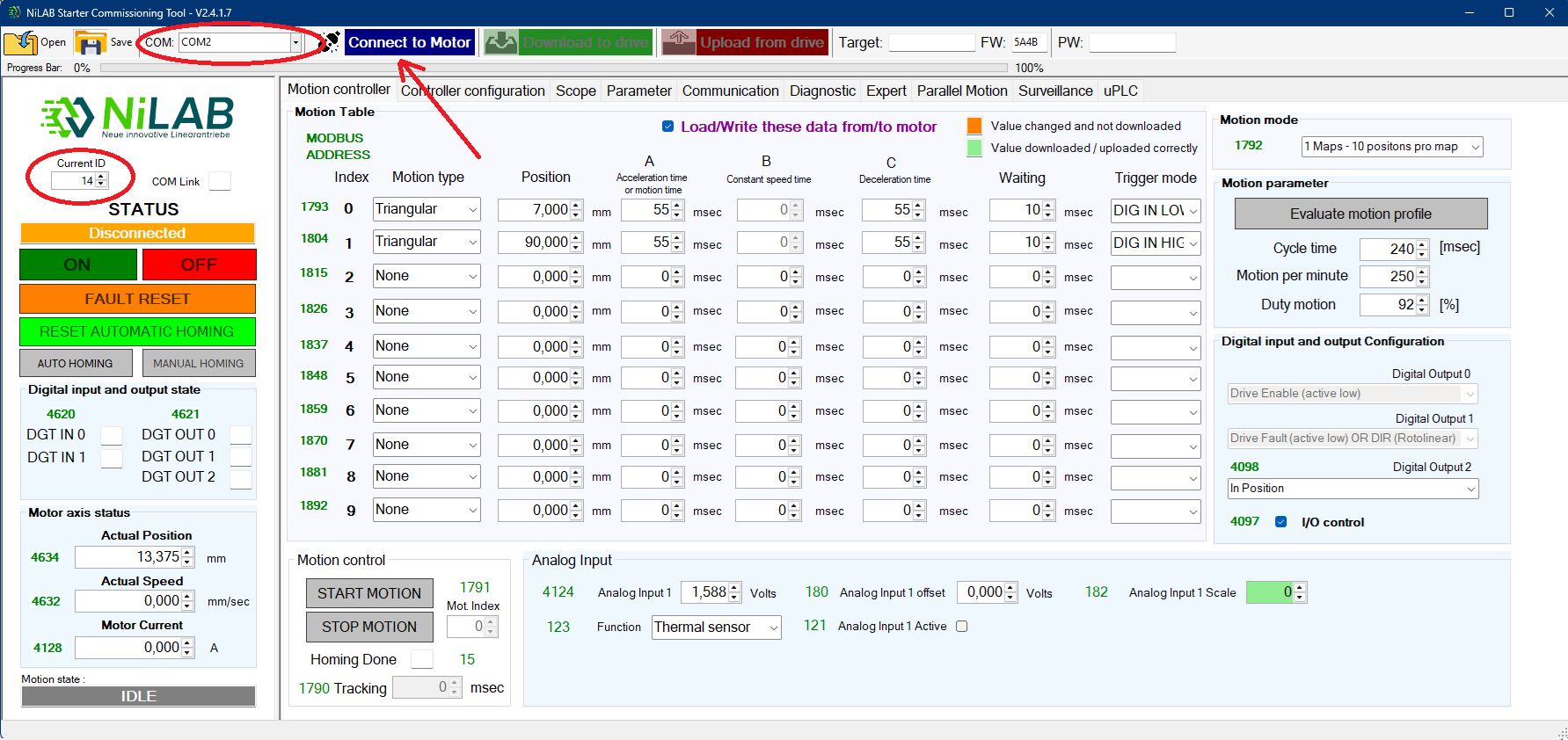
2. Launch a new session of the NiLAB Starter software. Select the right Current ID of the connected motor and the right COM port for communication using USB to RS485 adapter cable. In the example below the ID of the motor is 14, Please use the right ID of the motor. the default value to be used is the value = 1 . Please note that if you need to know the available motor with the relative ID number use the Communication window and the press the button Scan Modbus Nodes to see the list. Press the button connect to Motor to connect.
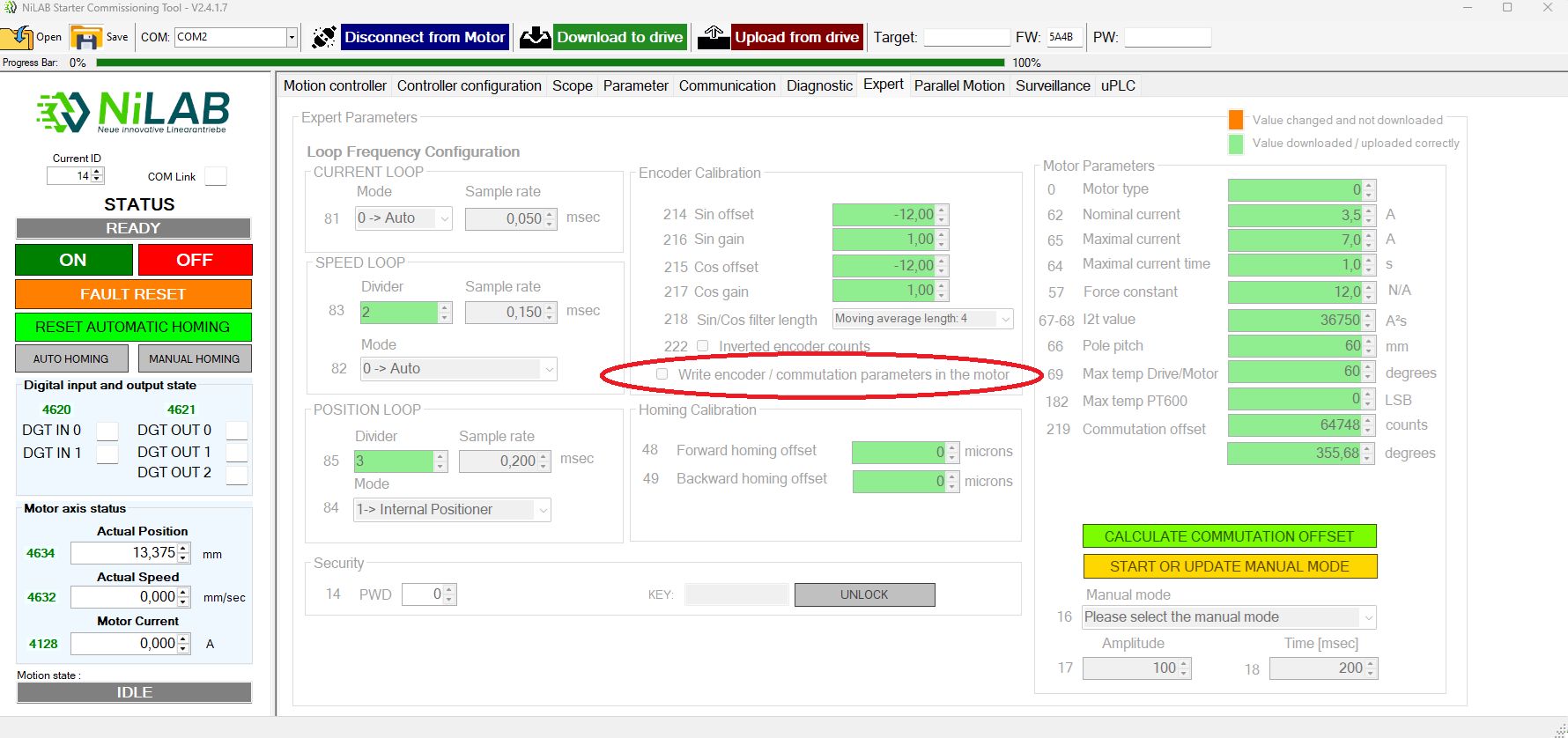
3. Please verify that the expert window is disable and tghe write encoder / commutation parameters in the motor option is unchecked.
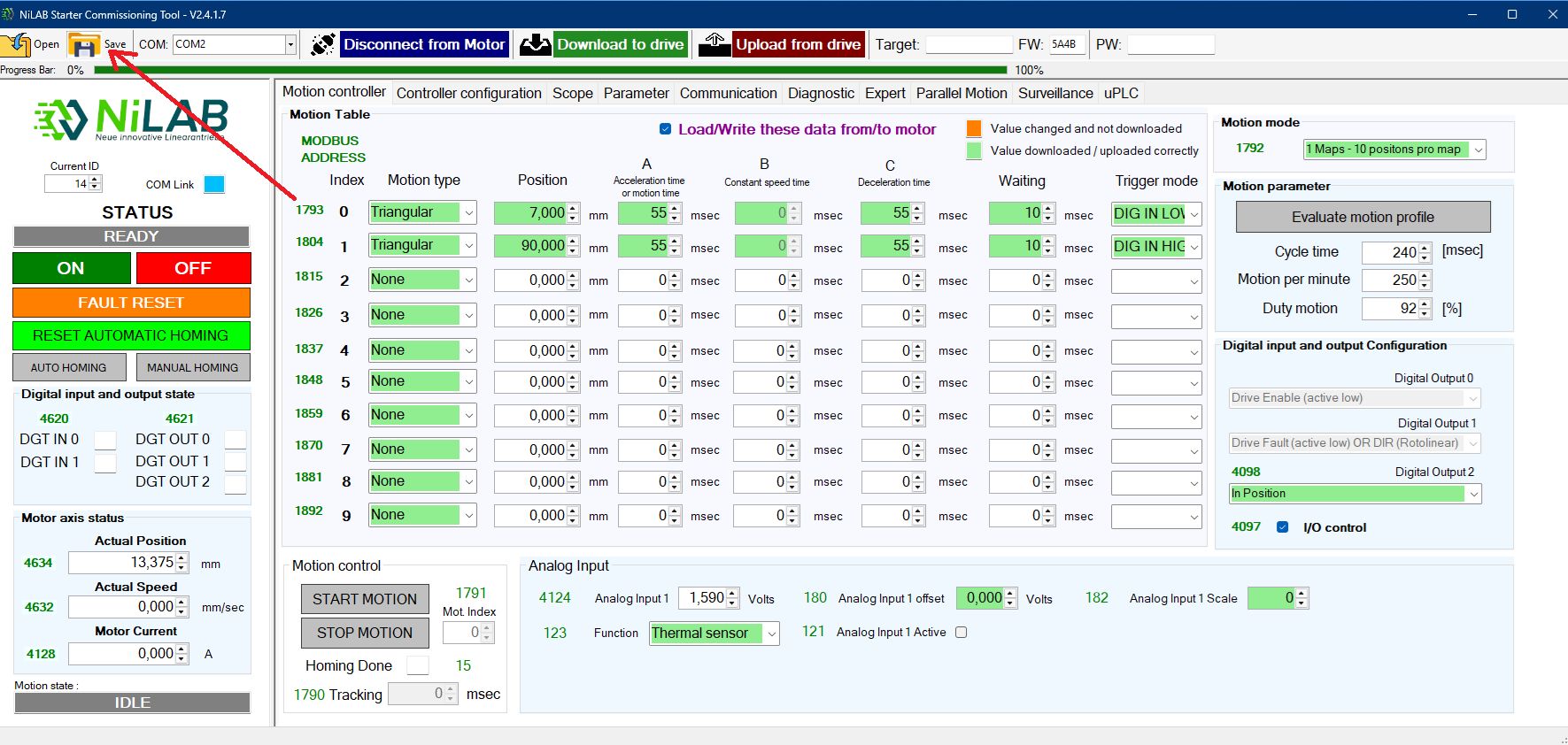
4. Connect to the motor to be replaced and the save the current configuration:
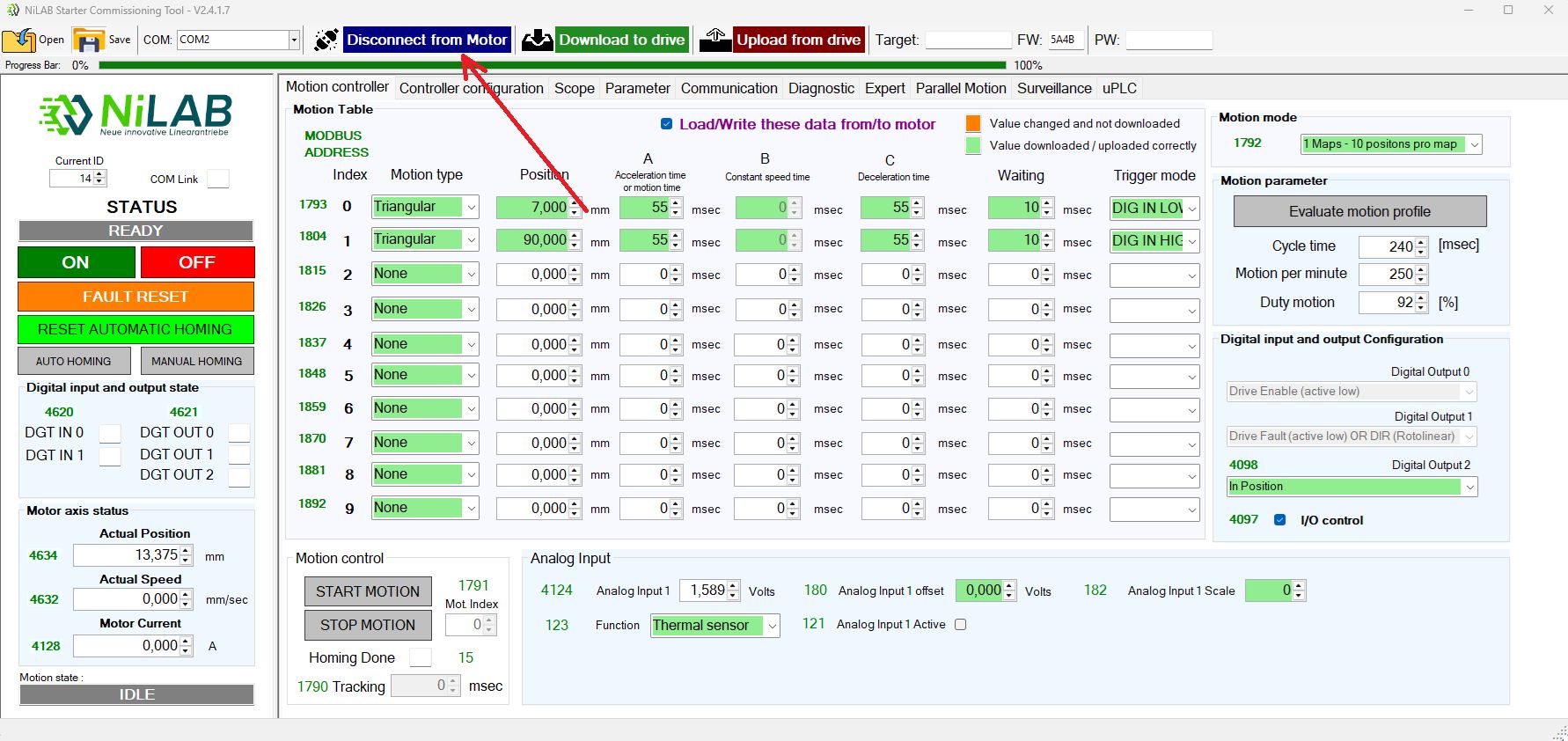
5. Disconnect the motor from NiLAB Starter pressing the button Disconnect the Motor
6. Now replace the selected motor with a new one and waiting the booting cycle of 5 seconds from the powerup.
7. Connect to the motor. Please take into account that a new motor as ID = 1. Change the current ID to 1 and connect pressing the Connect to Motor button
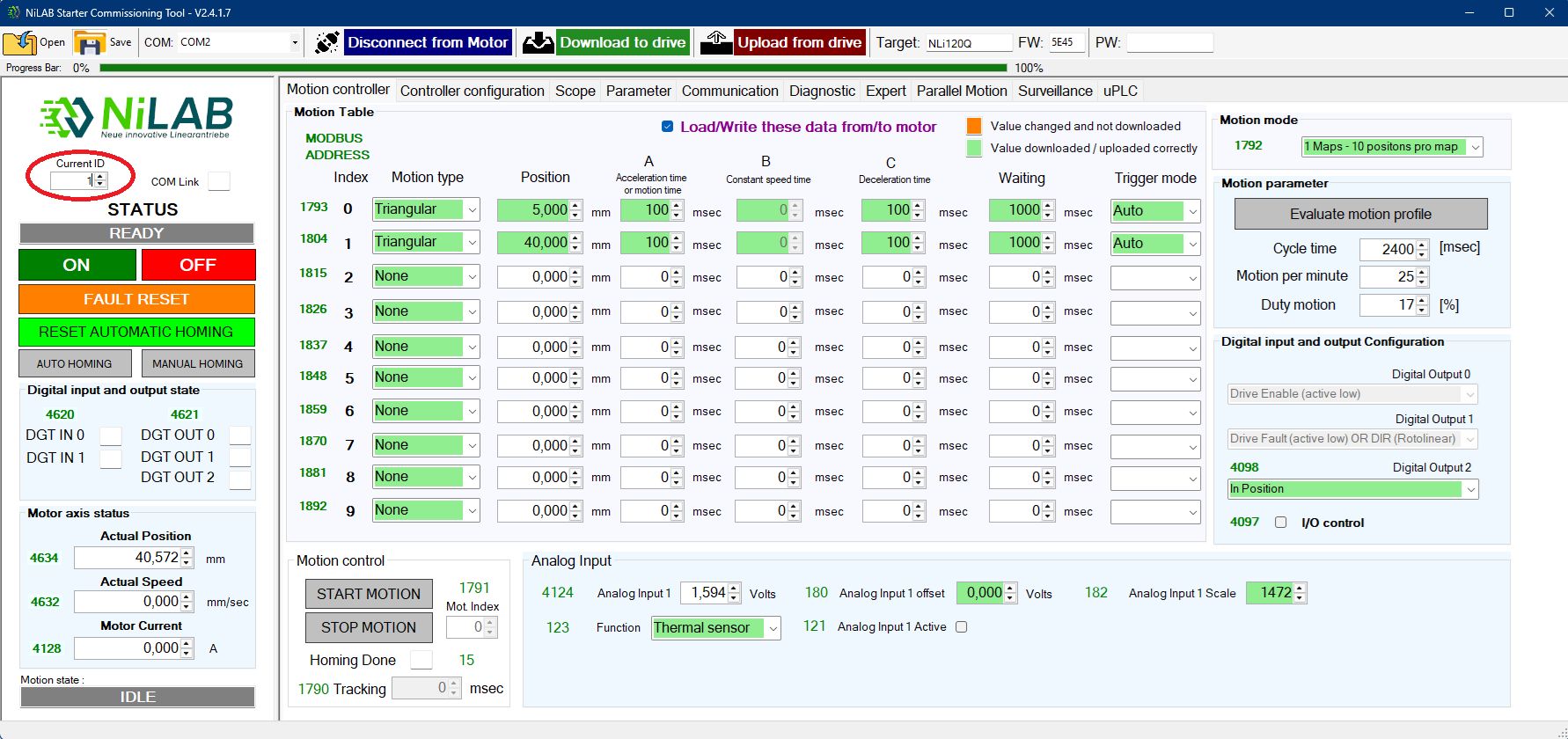
8. Load the configuration file you saved prevously at the step 4 of this list.
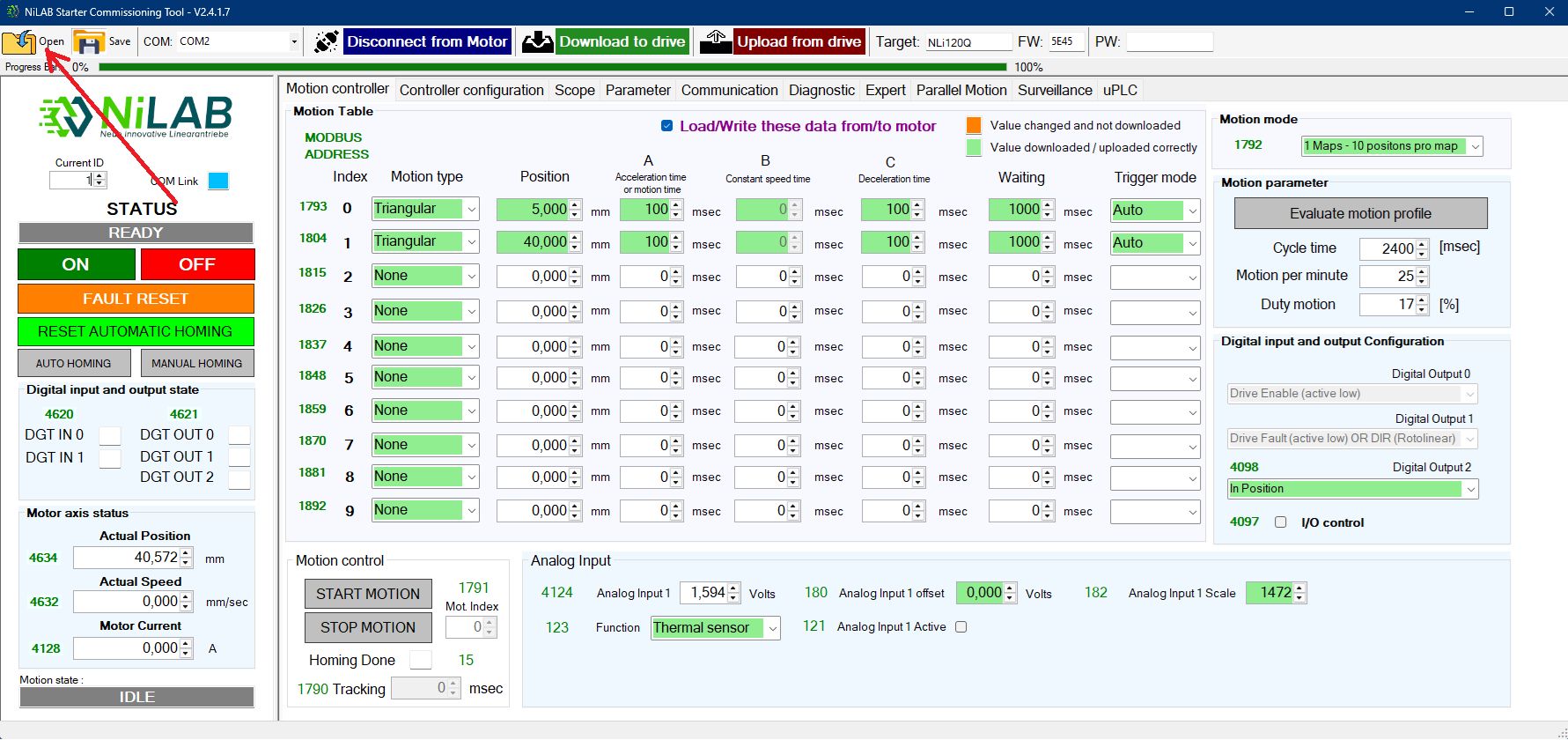
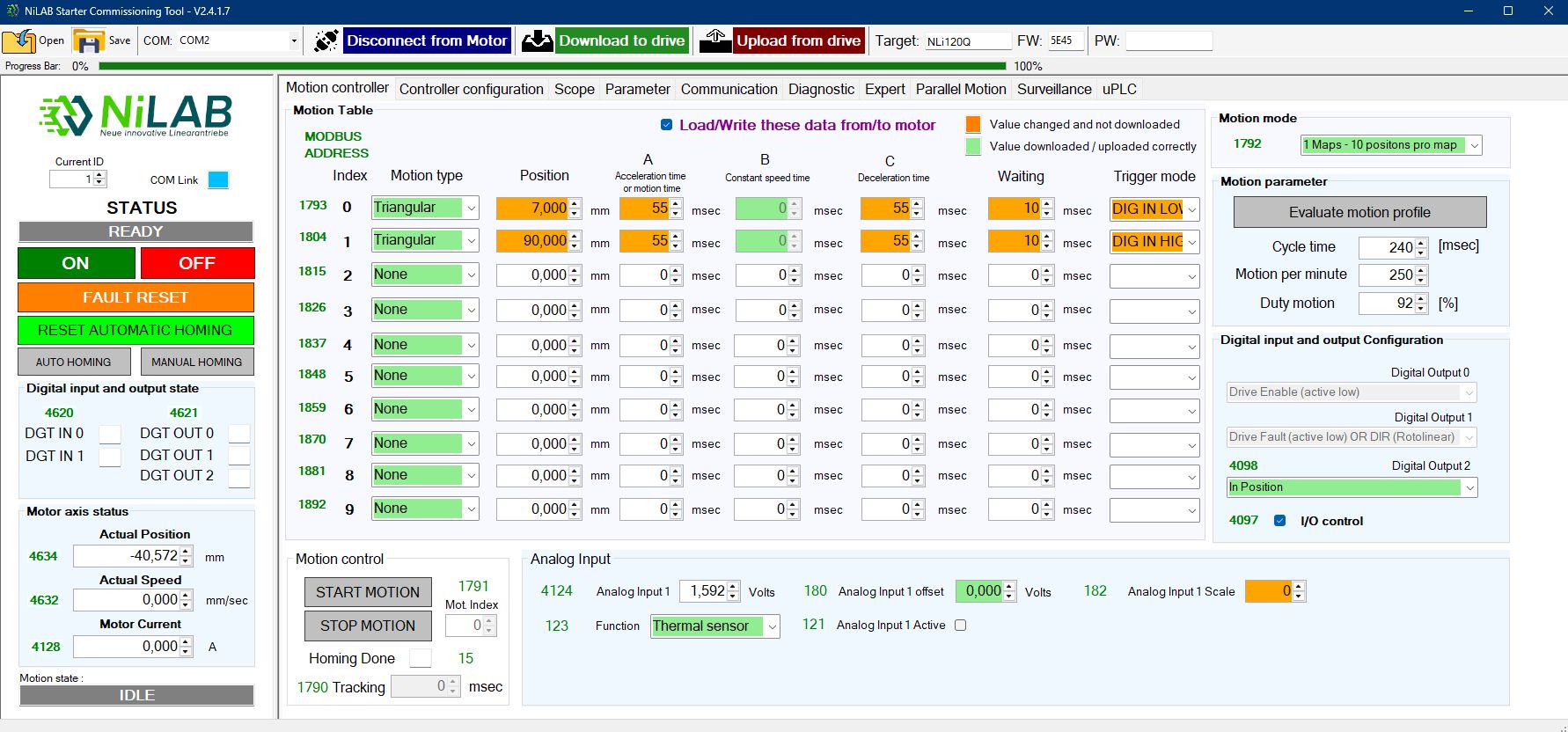
After loading the file all the differences are highlighted in orange color.
Please note that the Device ID is updated with the right one loaded from file.
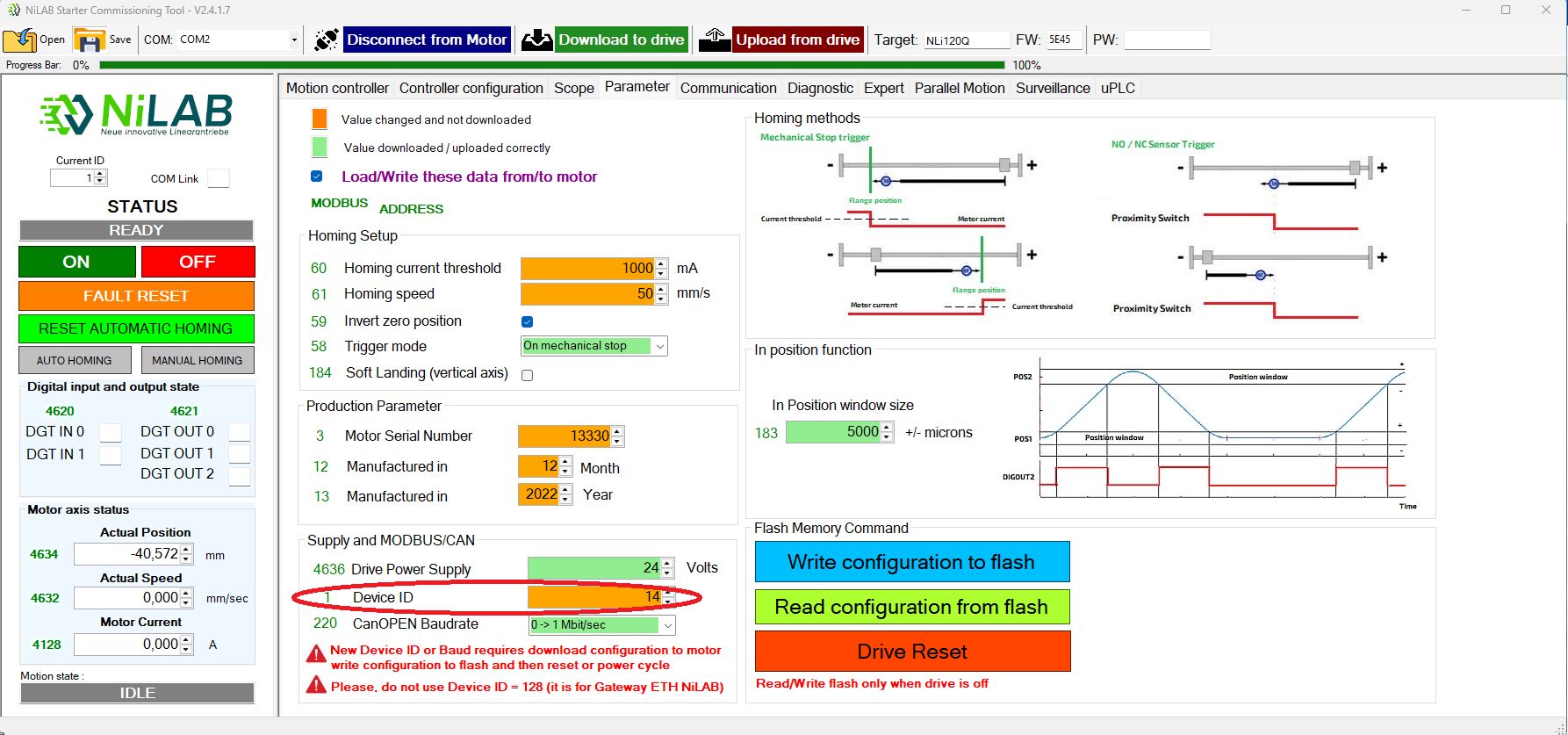
9. Download the configuration to the motor pressing Download to drive button and all the differences change to green color.
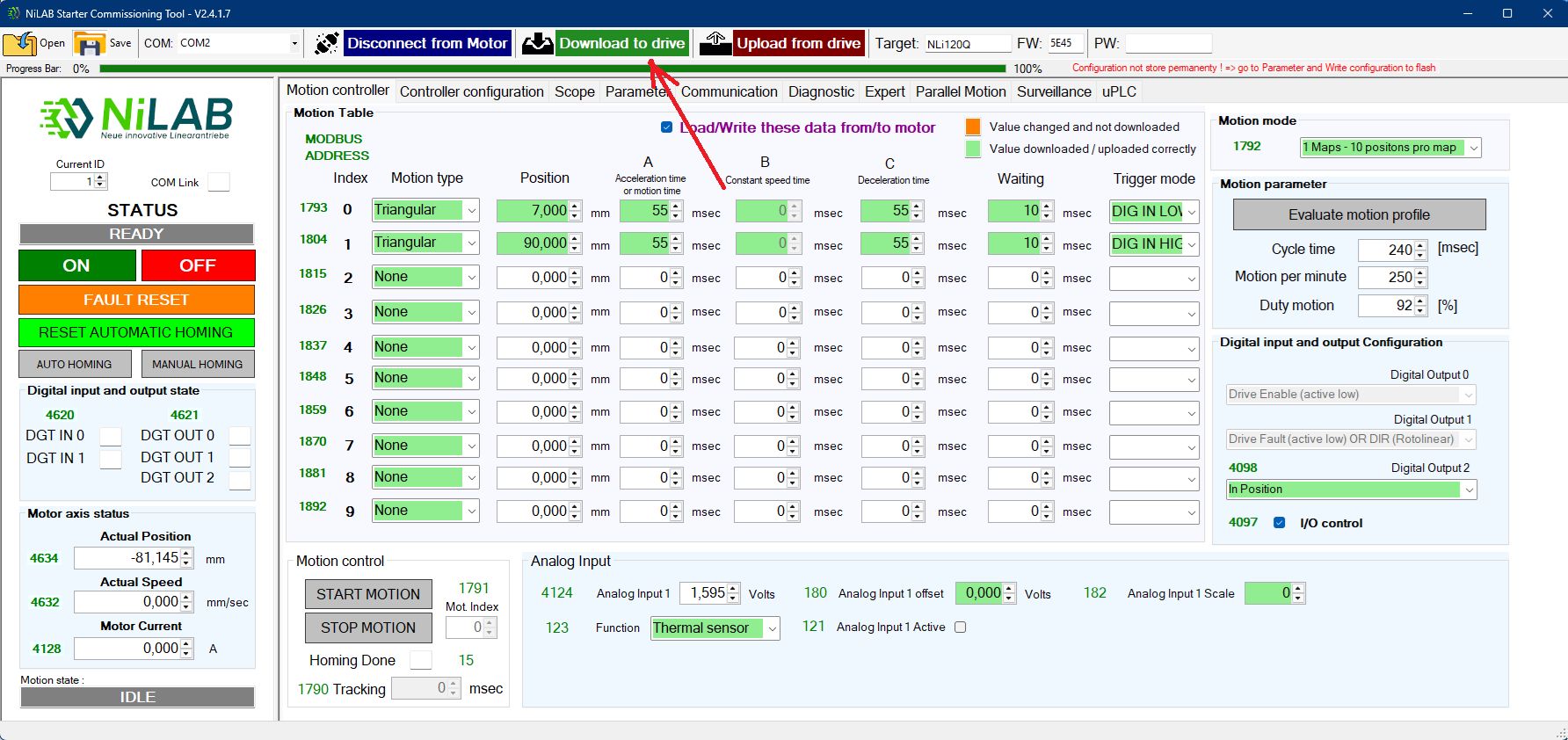
10. Store the configuration permanently to Flash pressing the Write configuration to flash button on the Parameter window.
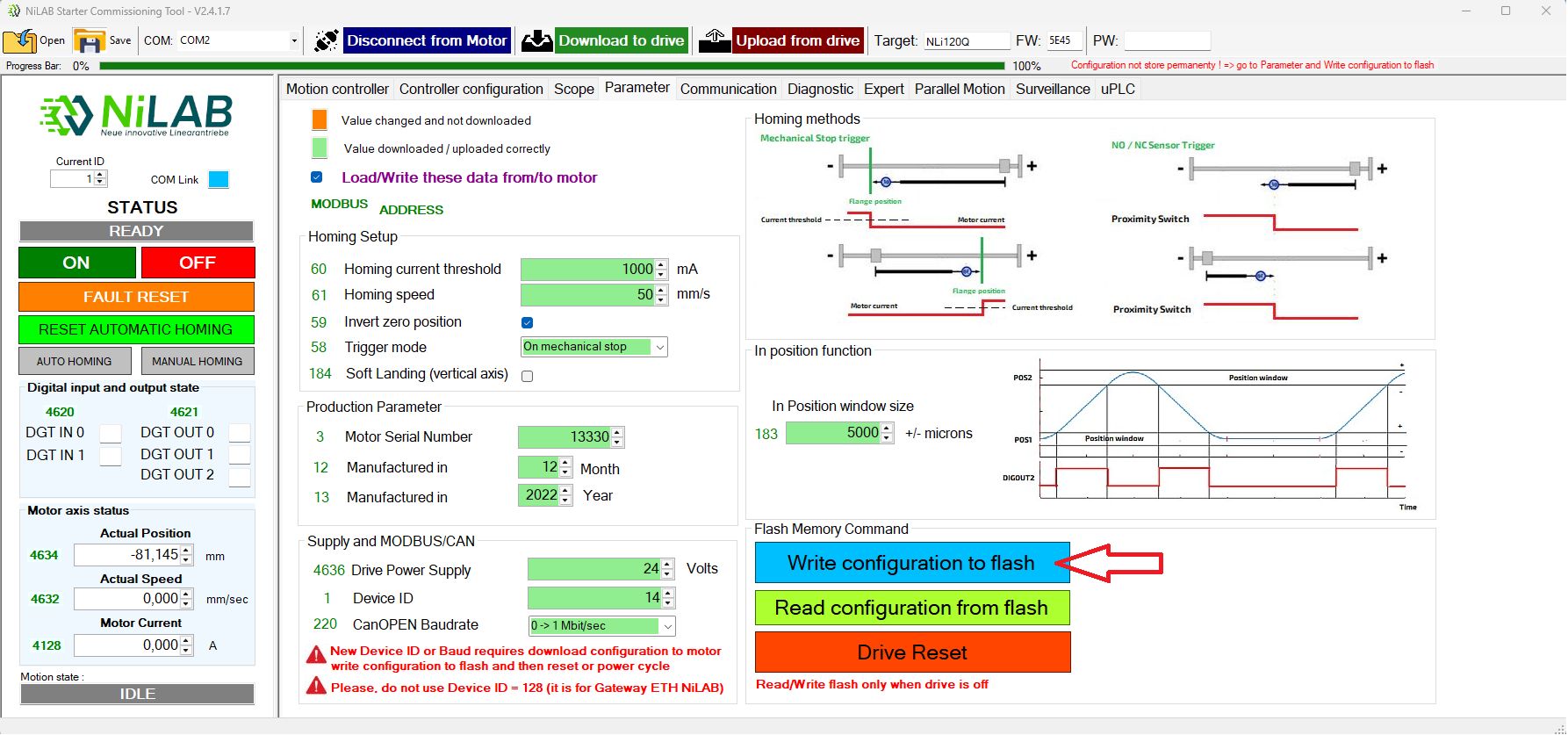
11. Disconnect the motor from NiLAB Starter and disconnect the power from the motor to update the Device ID to the new value.
12. Reconnect the motor to the power and wait 5 seconds before connect again using NiLAB Starter with the right ID (in this example we change the ID from 1 = Default to ID = 14).
Check if the motor is running with the previous configuration of the replaced motor.